
Activity Indicators
Understand the tab and pane indicators that show where attention is needed.
What it is
Activity indicators appear beside tabs and panes. They help you identify whether a pane is idle, working, stopped, or waiting for attention.
Why you might use it
Use the indicators to scan several agent sessions and decide where to focus next.
Before you start
Activity indicators are enabled by default. To change them, open Settings → Panes → Activity Indicators.
How to use it
Read the indicator beside a pane or tab:
| Indicator | Meaning |
|---|---|
| Hollow ring | Idle, with no active attention signal |
| Soft neutral glow | A supported agent signal indicates that work is active |
| Secondary octagon | A Claude Code turn has stopped while its process remains available |
| Filled accent dot | The pane has a pending attention notification; priority notifications use the priority color |
Focusing a pane clears its notification. A tab shows the strongest state among its panes, with waiting taking priority over working, stopped, and idle.
What you should see
Each tab and pane keeps an indicator, including when it is idle. The focused pane remains identifiable even when Focus Pane hides the other panes.
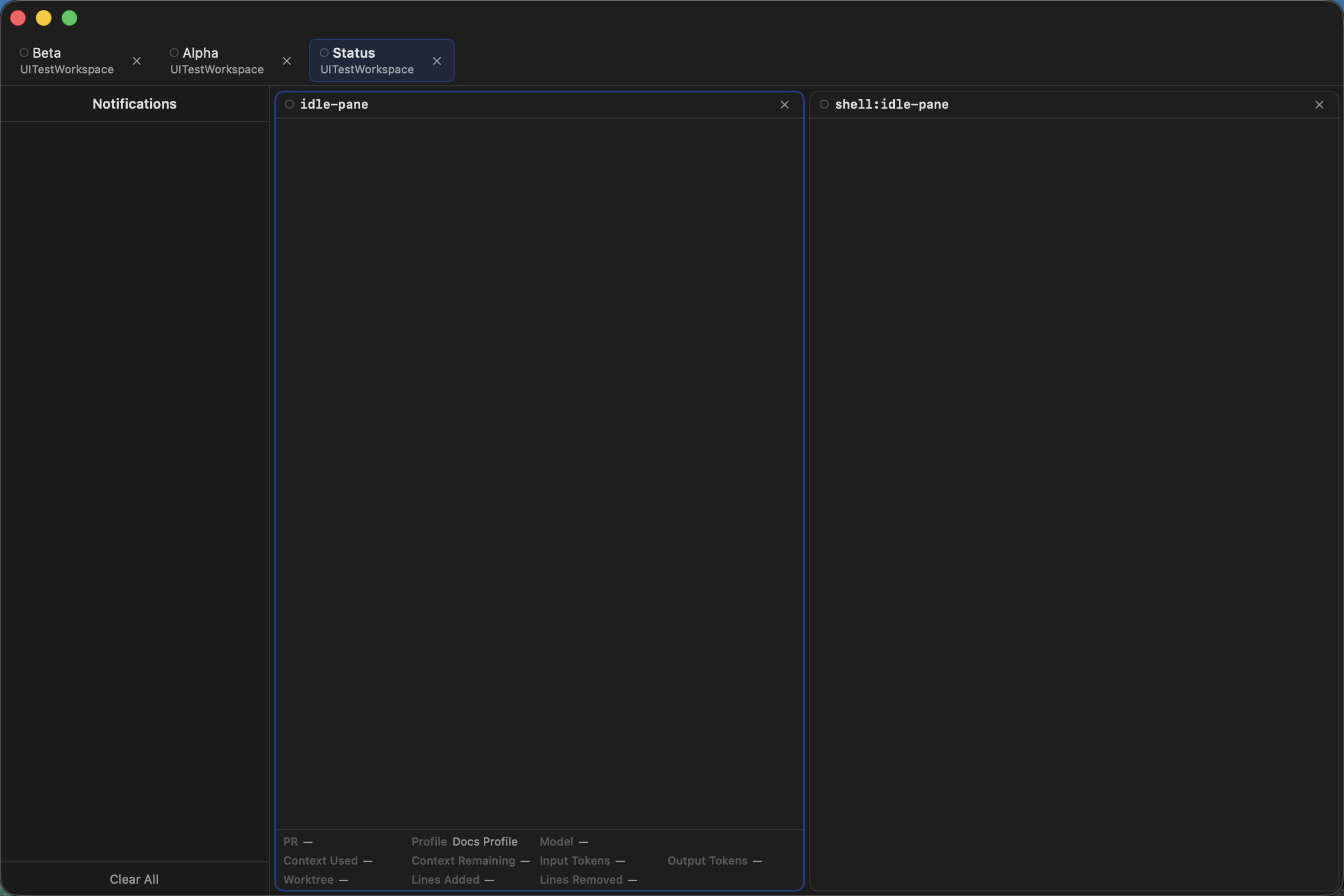
The notification sidebar stays aligned with the tab and pane indicators.
If it does not work
- If indicators are missing, enable Show Activity Indicators in Settings → Panes → Activity Indicators.
- If the notification sidebar is hidden while a pane is focused, review Hide Notification Sidebar in Settings → Panes → Focus Mode.
- If a tool does not report a working state, its pane can remain idle until an attention notification appears.