
Profiles
Save reusable agent tool settings and apply them when creating panes.
What it is
A profile is a named set of settings for one agent tool. It can include CLI options, environment variables for tools that support them, and an optional status line layout.
Why you might use it
Profiles save repeated setup. Create one for a common model, permission mode, workflow, or status line, then apply it to a new pane instead of configuring each option again.
Before you start
Enable the agent tool you want to use in Agent Tools. Profiles can only use active tools.
How to use it
Create or edit a profile
- Open Settings and select Profiles.
- Choose New Profile, or open an existing profile’s menu and choose Edit.
- Enter a Profile Name and choose a Harness.
- Enable the CLI options and environment variables the profile should apply.
- Mark Show on new pane for disabled options you want to adjust each time. Enabled options appear automatically, and options that are not shown remain available under the expanded catalog.
- Optionally enable a custom status line for the profile.
- Save the profile.
Use Duplicate to make a copy, Delete to remove a profile, or the up and down arrows to change its order.
Apply a profile to a pane
- Open New Pane.
- Choose a profile from Profile.
- Review any options displayed in the sheet.
- Choose Create Pane.
The profile selects its harness and applies its saved settings. Enabled options appear for review in the CLI Options sheet; options marked Show on new pane also appear when disabled. If you change an option, the profile name is marked (modified). Choose Save Profile & Create if you want to save the changed settings before creating the pane; this saves a new profile snapshot with the name you provide and then creates the pane.
The first profile in the list that matches the selected harness is preselected when a new pane opens.
What you should see
The profile appears in Settings → Profiles and in the Profile picker in New Pane. Enabled options and options marked Show on new pane appear for editing; other saved options remain in the expanded catalog.
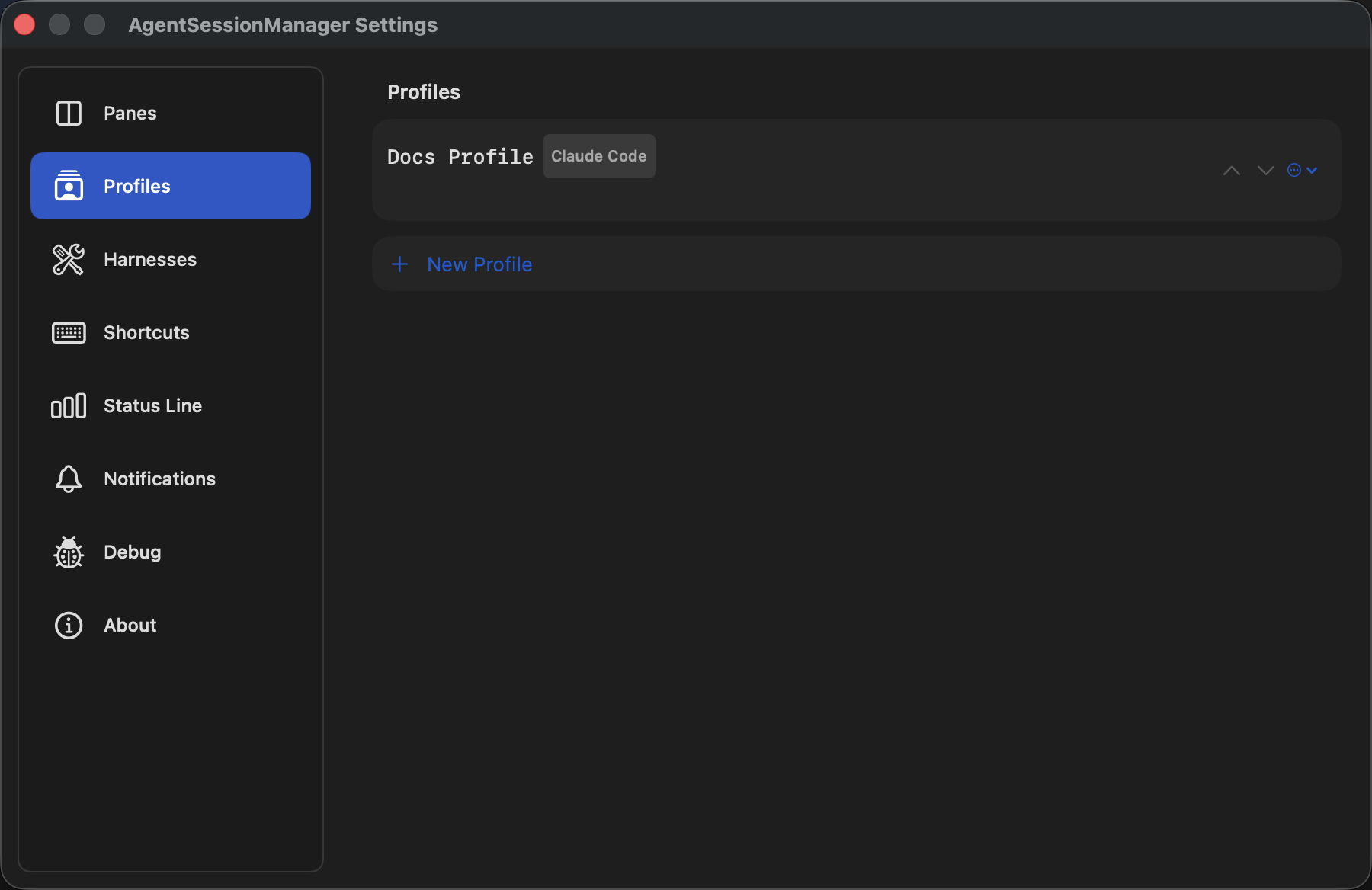
Profiles are managed from the Profiles section of Settings and can be reused in New Pane.
If it does not work
- If a profile does not appear in New Pane, enable its harness in Agent Tools.
- If a disabled option is not visible, edit the profile and enable Show on new pane for that option. Enabled options appear automatically.
- If the profile is not preselected, move it higher than other profiles for the same harness.