
Tool Options
Choose which CLI options and environment variables appear when you create an agent pane.
What it is
Tool options are the CLI flags and supported environment variables Agent Session Manager can pass when it starts an agent tool. The available catalog depends on the selected tool.
Why you might use it
Configure common defaults once, keep the New Pane sheet focused on the choices you make often, and add a custom option when the built-in catalog does not include one you use.
Before you start
Open Settings → Harnesses and enable the tool you want to configure. Agent Session Manager currently supports Claude Code, Cursor, Codex, and OpenCode.
How to use it
- Open Settings and select Harnesses.
- Select a tool from the tool picker.
- Enable or disable the tool’s options in the Enabled and Not Enabled sections.
- Use Show to control whether an option appears in New Pane.
- Use Default on to enable a visible option by default when a pane is created.
- For text options, enter a value when the option is shown.
- To turn a text option into a menu, add one or more Preset values in its settings row.
- Enable Allow multiple selections when the option should accept more than one preset.
- Choose Add Custom Flag to add a boolean or text option that is not in the catalog.
- For Claude Code or OpenCode, configure supported entries under Environment Variables when needed.
The options available from New Pane → CLI Options change when you select a different Harness. You can also configure options while editing a profile.
Text options without presets remain text fields. Options with presets use a single-selection menu unless Allow multiple selections is enabled. In either menu, choose Custom… or Add custom… when you need a value that is not in the preset list.
What you should see
Options marked Show appear in the selected tool’s CLI Options surface in New Pane. Options marked Default on start enabled there. Custom flags and environment variables are saved with the tool configuration and can be included in profiles. Choose Show all options when you need an option that is not part of the compact profile view.
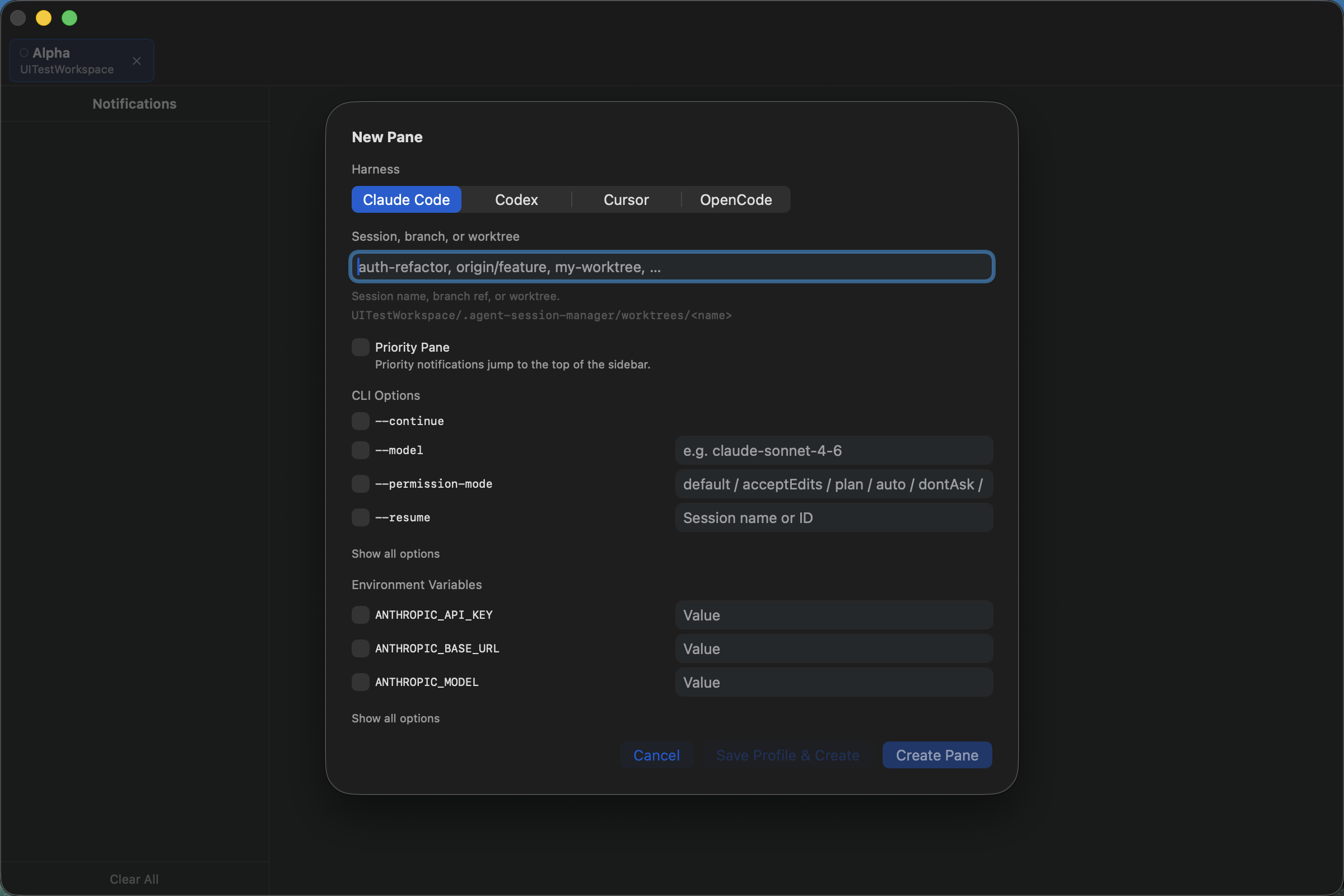
The selected harness controls which CLI options appear during pane creation.
If it does not work
- If a tool’s options are unavailable, enable the tool first in Harnesses.
- If an option does not appear in the compact view, open New Pane → CLI Options → Show all options, or turn on Show for that option.
- If a custom flag has no effect, confirm that the installed version of the selected tool recognizes it.
- If an environment variable is not available for editing, it may be controlled by Agent Session Manager for that tool.