
Project Isolation
Use Git branches and worktrees to isolate each agent task.
What it is
Agent Session Manager uses Git worktrees to give each agent pane an isolated task directory. Each worktree is linked to the same repository but has its own files, index, and current branch, so changes for separate tasks do not mix together.
The app prepares or opens the worktree before the agent starts. It does not commit, push, or merge changes on your behalf; those remain part of your normal Git workflow.
Why you might use it
Use a separate Git worktree when you want several agents to work on different branches or tasks at the same time. You can also open an existing worktree when the task already has one.
Before you start
Create a tab for the Git repository you want to work in. Decide whether the pane should create a new task branch and worktree or open an existing branch or worktree.
How to use it
Start a new task
- Open New Pane.
- In Session, branch, or worktree, enter a simple task name such as
feature-a. - Choose Create Pane.
When the name does not match an existing branch or worktree, Agent Session Manager creates a new branch and linked worktree if Default Branch is enabled or the tab has a Base Branch. It uses the configured Starting Point for that new worktree. If neither setting supplies a starting branch, the name must identify an existing branch or worktree.
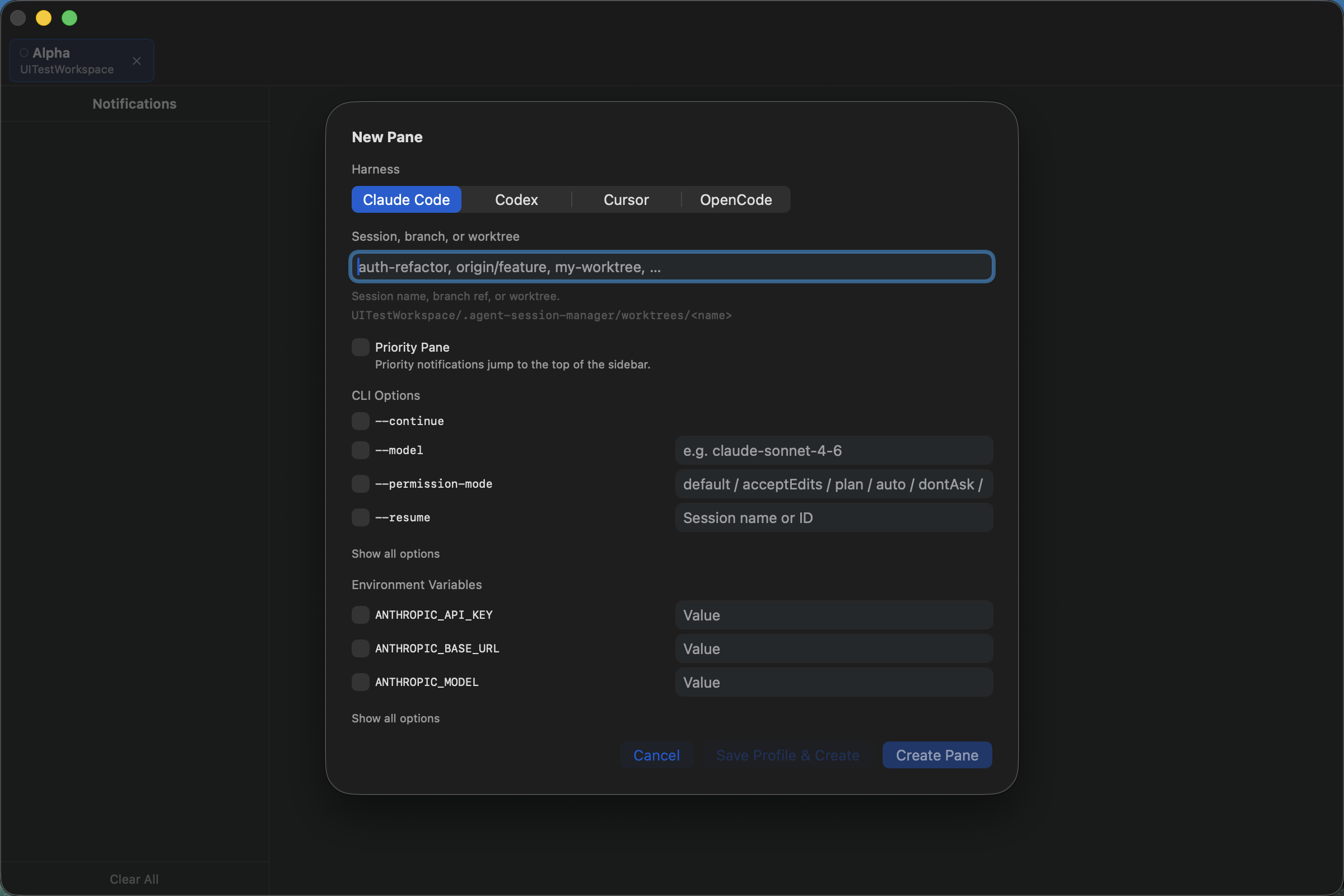
New Pane keeps the agent tool, task branch or worktree, priority, CLI options, and environment variables in one flow.
Open an existing branch or worktree
- Open New Pane.
- Enter an existing local branch, a remote branch such as
origin/feature, or a worktree name. - Choose Create Pane.
- If the worktree already exists outside the worktrees created by Agent Session Manager, choose whether to open it without management or allow the app to manage it for cleanup.
Opening an existing branch or worktree uses its existing state. Fresh applies when the app creates a new task branch and worktree; it does not update an existing branch.
Choose a starting branch
For one tab, enter a branch in Base Branch when creating the tab. For the default behavior across new panes, open Settings → Panes → New Pane, enable Default Branch, and choose the branch name and Starting Point.
Starting Point controls which commits are available when a new task branch and worktree are created:
- Fresh fetches
origin/<base-branch>before creating the task branch. The new branch starts from the fetched remote tip. Fetching does not merge changes into an existing branch or worktree. - HEAD starts from local
HEAD, including unpushed commits and the current branch state.
If Fresh cannot fetch the remote, the current local branch is used when it is available. In that case, the new worktree may not include the latest remote commits. Check the remote connection or choose HEAD when you intentionally want local state.
Choose what happens when a branch already exists
In Settings → Panes → New Pane, use If Branch Exists to decide whether an existing worktree outside Agent Session Manager’s created worktrees should be managed:
- Ask shows a choice each time. Choose Manage to allow cleanup later, or Don’t Manage to leave the worktree under your control.
- Always takes over management automatically so the worktree can be cleaned up later.
- Never uses the existing worktree as-is and does not offer cleanup for it.
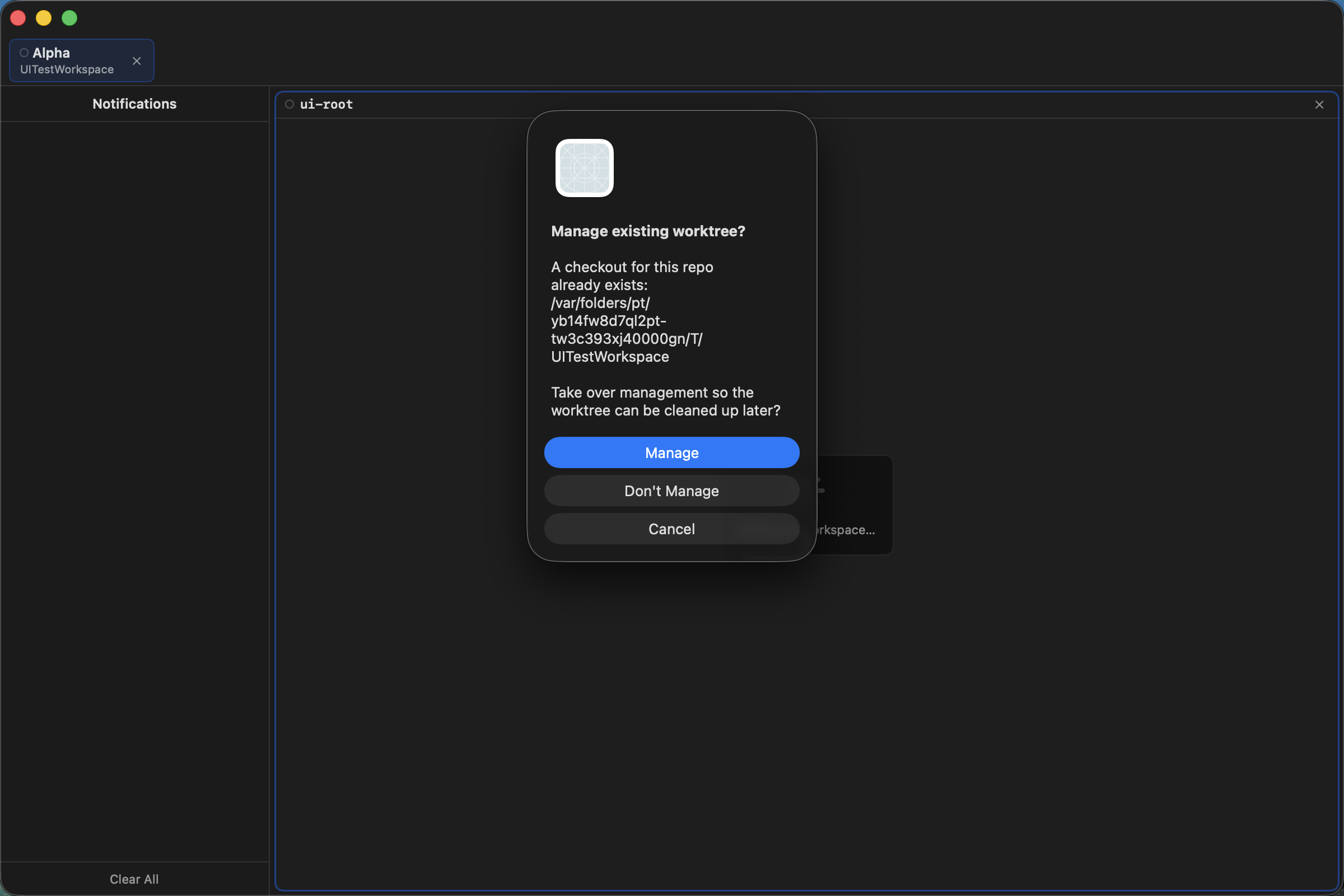
When an existing worktree is outside the app’s created worktrees, choose whether Agent Session Manager should manage it.
What you should see
The pane opens in the selected Git worktree, and the agent tool starts there. Other panes can use different task worktrees while remaining in the same tab.
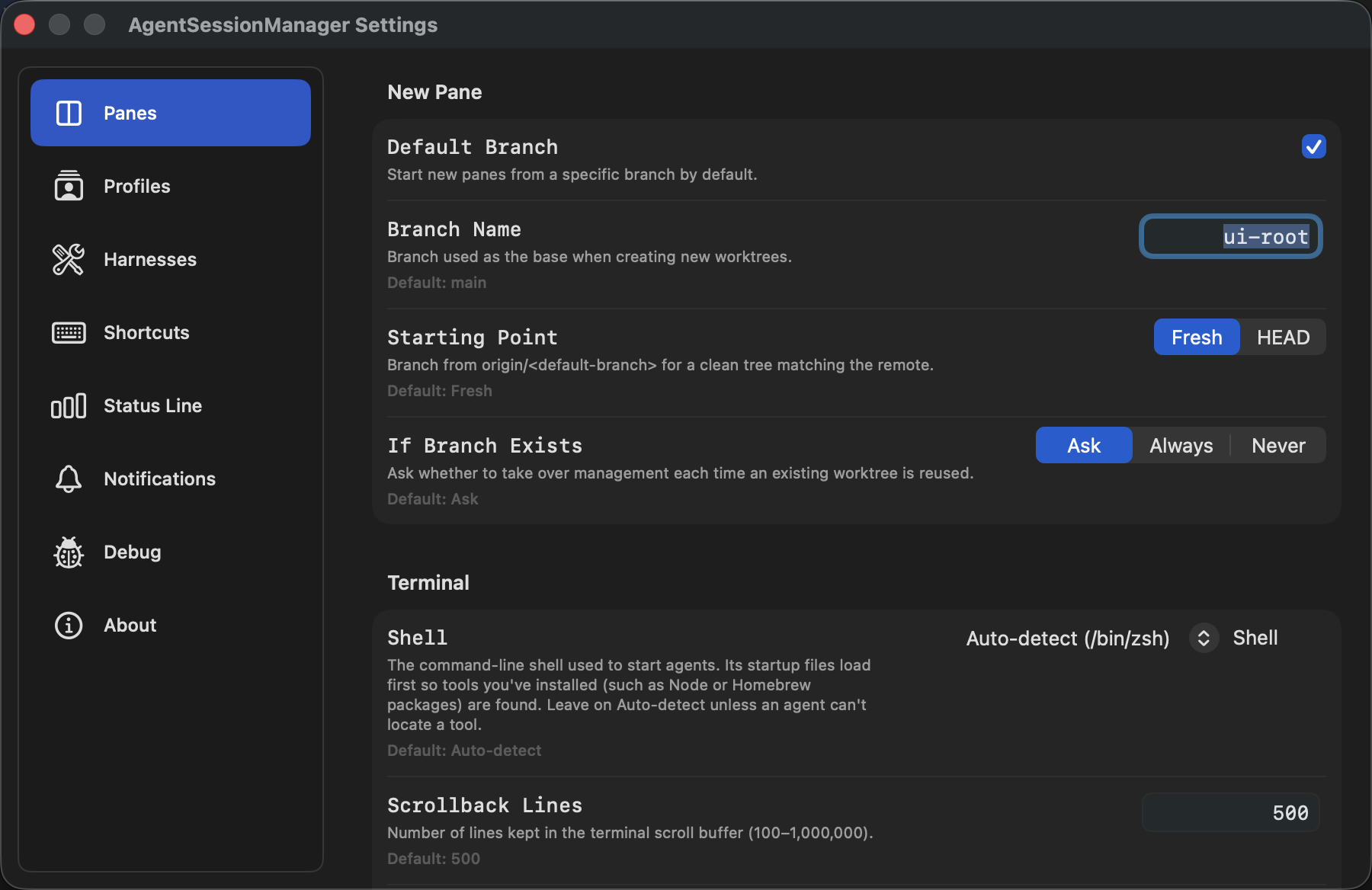
Pane settings control default branches, starting points, existing-branch behavior, and terminal defaults.
If it does not work
- If the entered name is rejected, use only letters, digits, dots, underscores, and dashes for a new task name.
- If you are opening a branch, enter the remote branch name when needed, such as
origin/feature. - If a worktree is already open, close the other pane or use the existing pane instead of opening a duplicate task.
- If a new name cannot be resolved, check Settings → Panes → New Pane → Default Branch or set Base Branch on the tab.