
Agent Tools
Enable supported agent tools and choose one for each pane.
What it is
Agent tools are the command-line assistants that run inside agent panes. Agent Session Manager currently supports Claude Code, Cursor, Codex, and OpenCode.
Why you might use it
Different tasks may call for different tools. You can enable the tools available on your Mac and choose the tool independently when creating each pane.
Before you start
Install the tool you want to use and make sure it is available from the shell selected by Agent Session Manager. The first-launch setup wizard can detect available tools, or you can configure them later.
How to use it
- Open Settings.
- Select Harnesses.
- Select a supported tool from the tool list.
- Enable the tool if it is not active.
- Review its available CLI options or environment variables if you want to change what appears during pane creation.
- Close Settings and open File → New Pane in Current Tab.
- Select the tool in Harness, then choose the options for that pane.
Only active tools appear in the Harness picker in New Pane. A shell opened with Open Shell Here is a plain shell session and does not require an active agent tool.
Use the tool guides for setup details:
What you should see
The active tools are available as choices in Harness. The options shown below the picker change when you select a different tool.
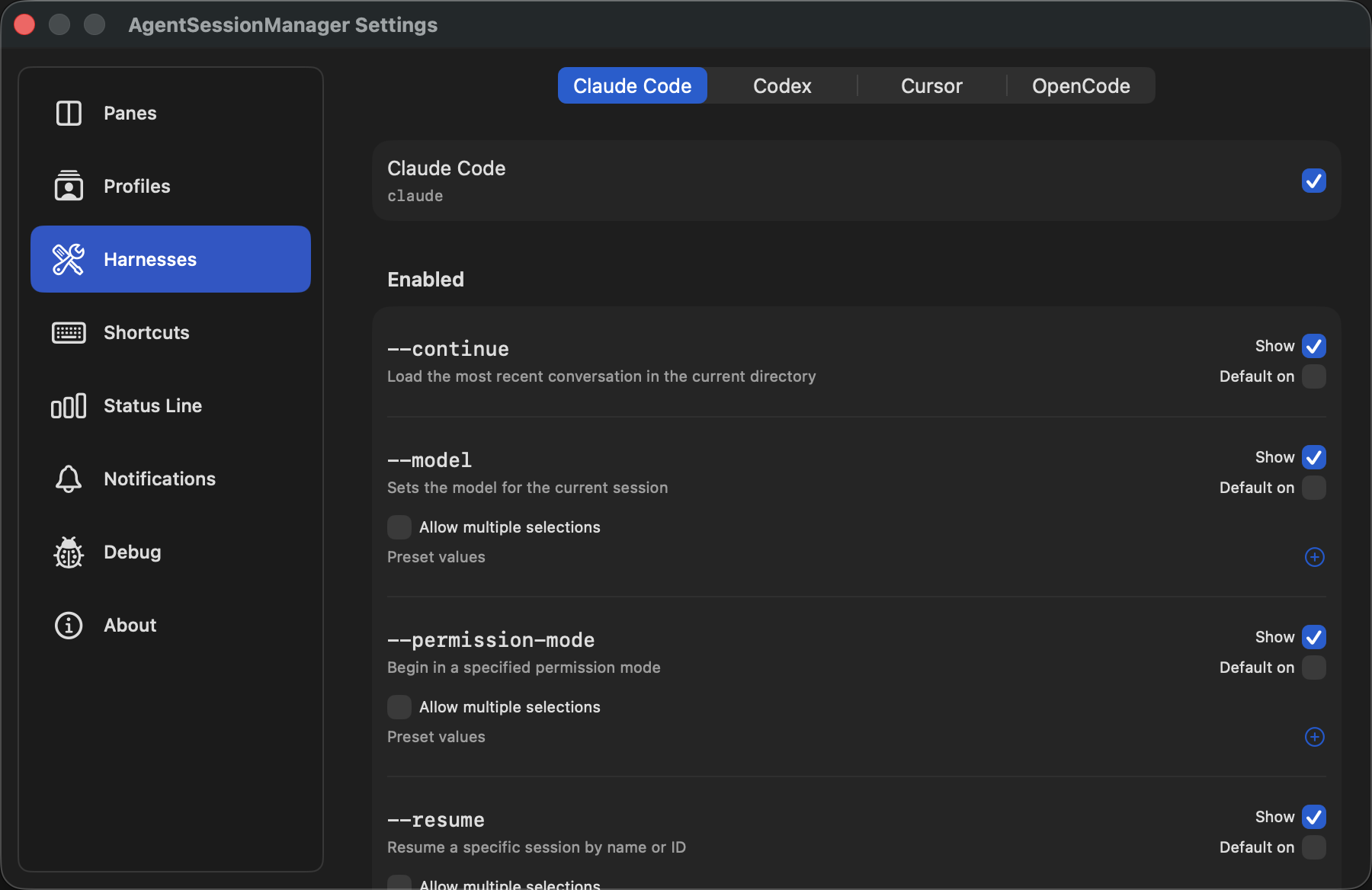
Settings → Harnesses controls which tools and options are available in New Pane.
If it does not work
If a tool is not listed in Harnesses, confirm that it is installed and available from the selected shell. Reopen Settings → Harnesses and enable it, then reopen New Pane.
If the tool is active but a pane cannot start, confirm that the selected shell can find the tool and retry after reopening New Pane.