
Worktree Cleanup
Choose what happens to a managed Git worktree when you close a pane.
What it is
Worktree cleanup controls whether Agent Session Manager removes a task Git worktree when you close its pane. It applies to worktrees managed by the app, not to every Git directory on your Mac.
Why you might use it
Delete finished task worktrees to keep a repository tidy, or keep them when you may want to reopen the task later.
Before you start
Understand whether the pane uses a worktree created or managed by Agent Session Manager. An unmanaged existing worktree is not removed just because its pane is closed. An existing worktree can become managed when you choose Manage in the existing-worktree prompt.
How to use it
Choose cleanup behavior
- Open Settings.
- Select Panes.
- In the Cleanup section, find Worktree Cleanup.
- Choose one of the available behaviors:
- Ask shows the choices each time.
- Always Keep closes the pane and keeps the worktree.
- Always Delete closes the pane and removes the managed worktree.
Decide when prompted
When Ask is selected and you close a managed pane:
- Choose Delete Worktree to close the pane and remove the managed worktree.
- Choose Keep Worktree to close the pane while leaving the worktree available to reopen.
- Choose Cancel to leave the pane open.
Deleting a worktree removes its working directory from Git’s list of worktrees. It does not delete the branch or commits made on that branch.
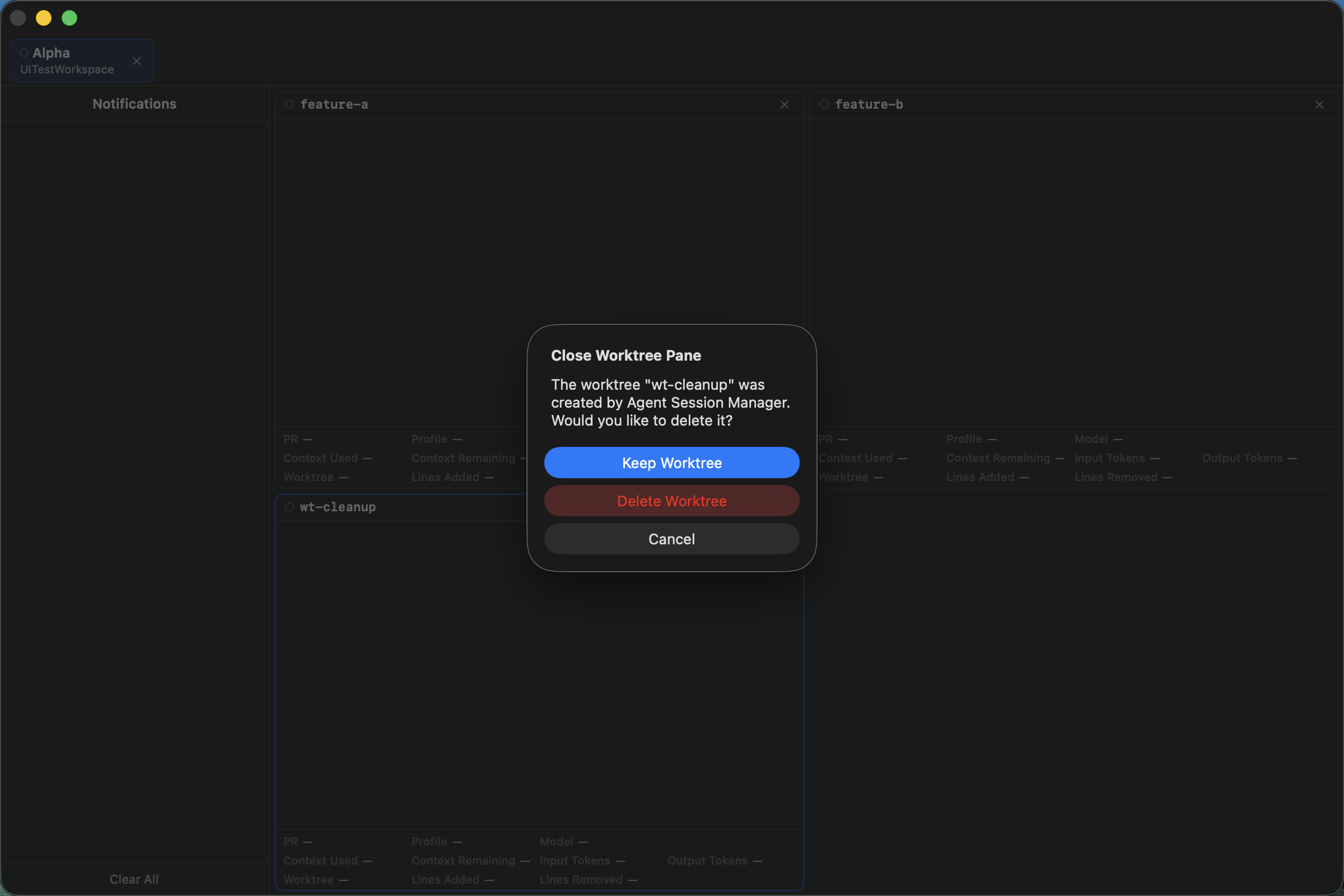
Closing a managed pane gives you an explicit choice to keep, delete, or cancel.
What you should see
Closing an unmanaged existing worktree simply closes the pane. Closing a managed worktree follows the selected cleanup behavior.
If it does not work
- If no cleanup dialog appears, the pane may use an unmanaged existing worktree or cleanup may be set to Always Keep or Always Delete.
- If a deleted task does not return after relaunch, create a new pane from its branch or worktree name.
- If you need the files later, choose Keep Worktree before closing the pane.