
Tabs and Panes
Organize projects and agent sessions with tabs and panes.
What it is
A tab is a project context. A pane is one terminal session inside that tab. You can keep several tasks open in one project tab and create another tab when you switch projects.
Why you might use it
Tabs keep projects separate, while panes let you work on multiple tasks without opening a separate terminal window for each one.
Before you start
Create a tab for a Git repository by following the Quickstart. To create an agent pane, make sure at least one tool is active in Agent Tools.
How to use it
Create and switch tabs
- Choose File → New Tab or press ⌘T.
- In New Tab, enter a project name in Name.
- Choose a project directory with Choose….
- Optionally enter a starting branch in Base Branch.
- Choose Create.
- Select a tab in the tab bar to switch projects. You can also press ⌘1 through ⌘9 to switch to a tab by position.
Create a pane
- Choose File → New Pane in Current Tab or press ⌘P.
- In New Pane, choose a Profile, or choose Custom and select a tool in Harness.
- Enter a name, branch, or existing worktree in Session, branch, or worktree.
- Open CLI Options for one-off flags, MCP servers, or environment variables.
- Open More Settings only when changing Priority Pane, Agent Control, or Scrollback History.
- Choose Create Pane.
Copy and paste in a pane
Right-click anywhere on a pane to open its context menu. Copy and Paste appear at the top.
- Copy — copies the selected text and clears the selection. The item is greyed out when nothing is selected.
- Paste — sends clipboard text through the terminal’s bracketed-paste path. Agent TUIs receive it as a single paste event. ⌘C and ⌘V work as before.
Open a shell in a pane’s working directory
- Open the pane’s context menu.
- Choose Open Shell Here.
The new shell pane uses the same working directory as the pane you selected.
Refresh a pane
To restart an agent pane with a fresh environment, open its context menu and choose Refresh Pane…, or press ⌘R when it is the active pane. Choose Refresh and Continue to restart with the same settings and --continue. Choose Refresh with New Settings… to change the CLI options before restarting. This action is not available for plain shell panes.
Close a pane or tab
Choose the close button in a pane header or press ⌘W to close the active pane. To close the active tab, press ⌘K or use File → Close Tab.
If the pane uses a Git worktree managed by Agent Session Manager, closing it may show cleanup choices. See Worktree Cleanup.
What you should see
The tab bar remains at the top of the window, and panes appear below it in a grid. Adding panes changes the grid layout while keeping each terminal session visible.
Session names
For Claude Code panes, Auto Session Name can pass the tab and pane names to Claude so the session is easier to find when you resume it. Open Settings → Panes → Terminal to enable or disable it. If you add a manual Session Name option in Settings → Harnesses → CLI Options, the manual value takes precedence.
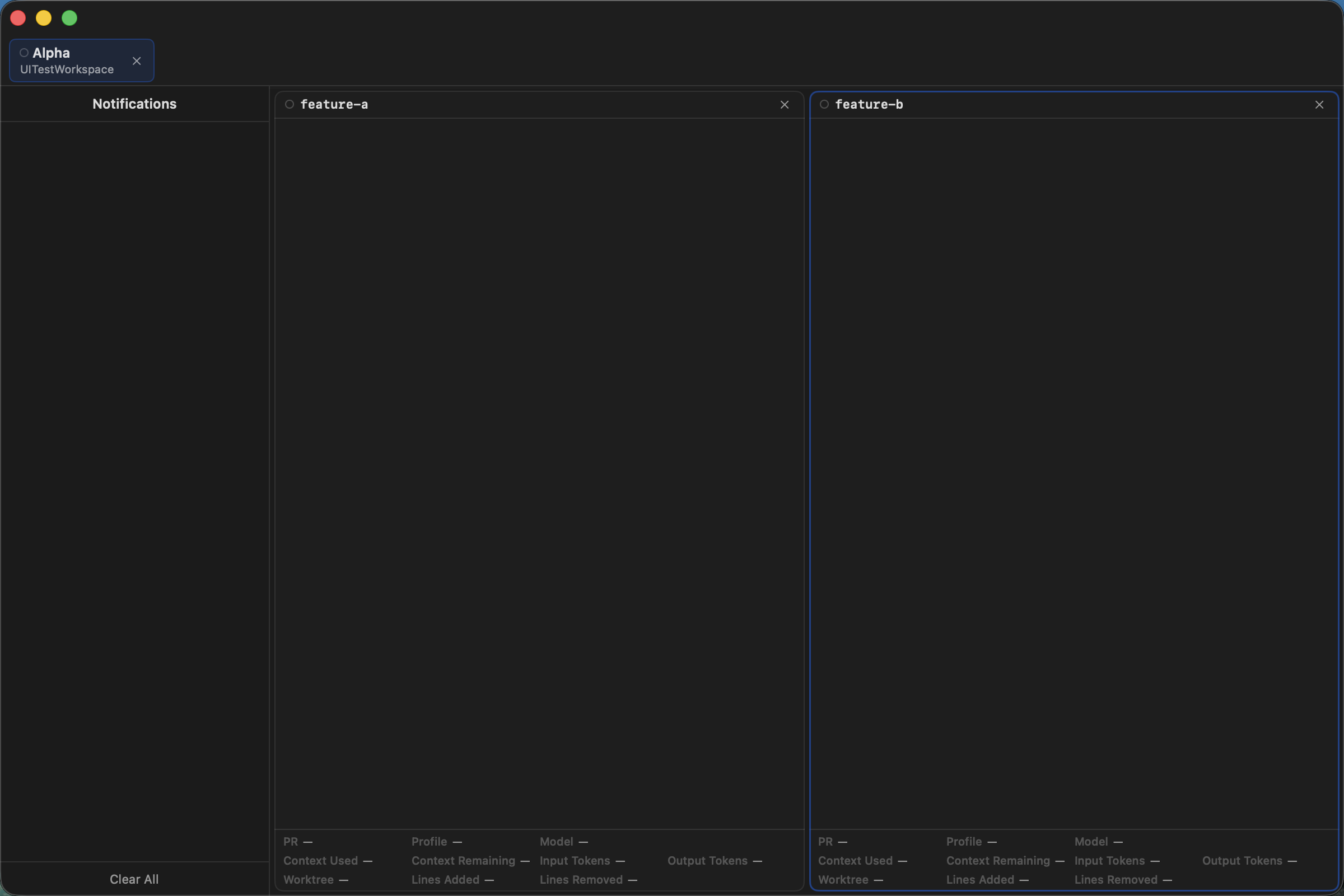
Each pane has its own header, terminal area, and status line.
If it does not work
- If Create is disabled in New Tab, provide both a name and a directory.
- If Create Pane is unavailable, activate at least one tool in Settings → Harnesses.
- If the session field reports an invalid or duplicate name, enter a valid task name, branch, or existing worktree that is not already open in the tab.