Status Line
Customize the information shown at the bottom of each terminal pane.
What it is
The status line is the information bar at the bottom of a pane. It can show session details, model and usage information, duration, worktree changes, and other facts available for the selected tool.
Why you might use it
Choose the information that helps you scan several panes quickly without interrupting the terminal session.
Before you start
Open Settings and select Status Line. The global editor lists the status facts available to the app. Facts that are not supported by a pane’s selected tool are filtered out when that pane renders its status line. A profile’s custom status line filters its Add Item menu to that profile’s harness.
How to use it
- Open Settings → Status Line.
- Choose the display style, item alignment, and percentage display options in Display.
- Add or remove rows with Add Row and the row controls.
- Within a row, choose Add Item and select the facts you want to see.
- Use the up and down controls to reorder rows and the minus controls to remove items.
- Optionally choose Add Custom Field to run a command that supplies a value for the status line.
- Changes are saved as you edit the layout.
Facts that are not supported by a pane’s harness are omitted. A supported fact with no current value may show a dash until data is available.
Show pull-request status
In GitHub PR Tracking, enable Track pull requests to show the current pull request status for a pane’s Git branch. This requires the GitHub CLI (gh) to be installed and authenticated. The same section controls polling and background refresh.
Use PR Polling Interval to control how often foreground checks run, Request Timeout to limit an in-flight request, and Background Refresh to keep checking while the app is unfocused. Background Polling Interval controls the cadence for those background checks.
What you should see
The configured rows appear at the bottom of each applicable terminal pane. The order in Settings matches the order in the pane, and custom fields refresh according to their configured interval.
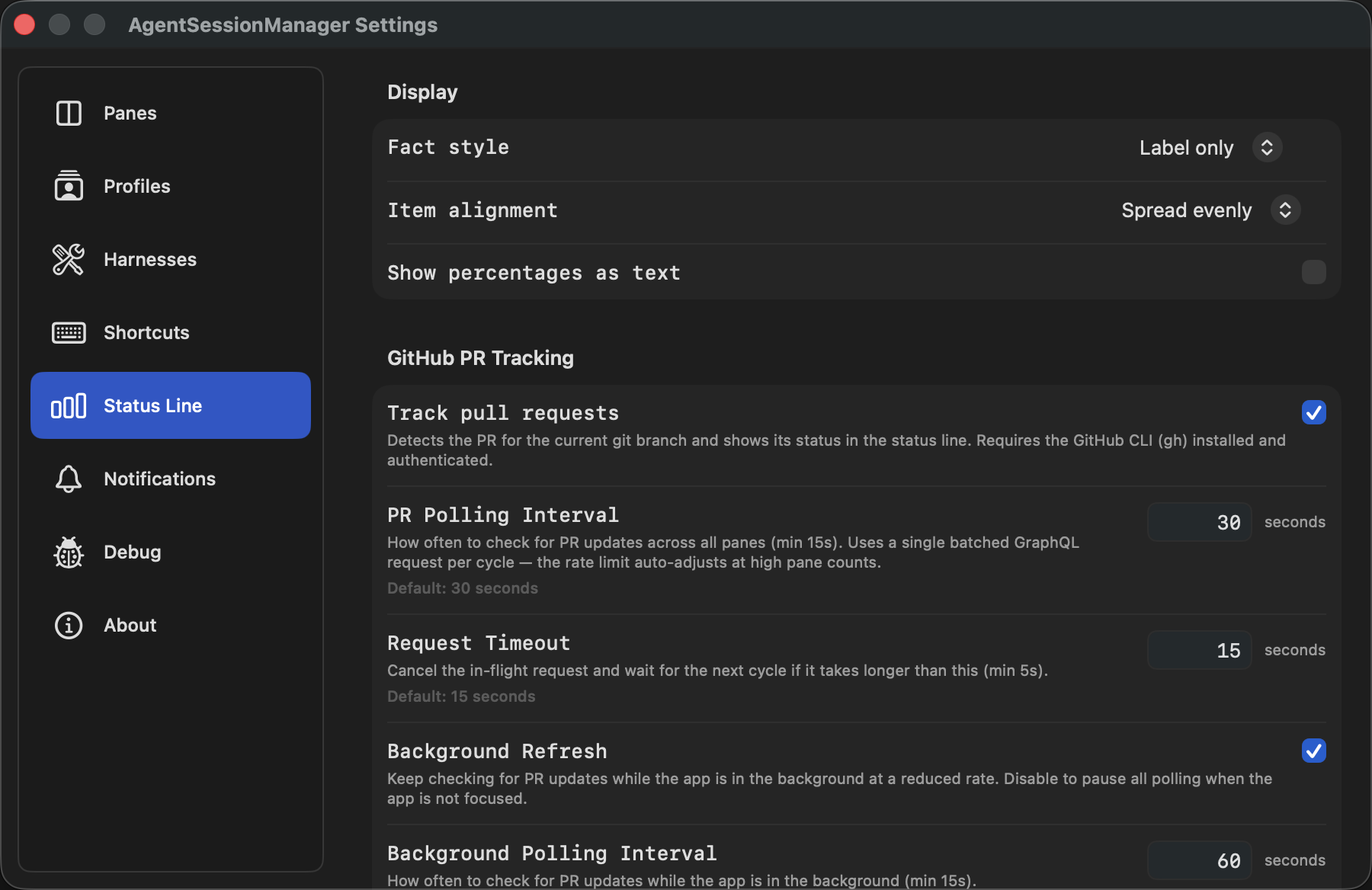
Status Line settings control the layout and pull-request tracking options.
If it does not work
- If an item is missing from Add Item, it may not be supported for the selected harness or may already be in a row.
- If the status line is not visible, add at least one row and one item in Settings → Status Line.
- If a custom field does not produce a value, use its preview in the editor and check the command, refresh interval, and timeout.
- If pull-request status is missing, confirm that
ghis installed, authenticated, and that Track pull requests is enabled.