
Focus Pane
Expand one pane when you need more room to read or work.
What it is
Focus Pane mode enlarges one terminal pane inside its tab while keeping the tab bar, terminal session, pane header, and status line available.
Why you might use it
Use Focus Pane mode when a task has long output or needs more horizontal space than the pane grid provides.
Before you start
Open a tab with at least two panes.
How to use it
- Double-click a pane header, or open the pane’s context menu and choose Focus This Pane.
- Work in the expanded pane.
- Choose Show All Panes, double-click the focused pane header, or use the context menu option to return to the grid.
You can still switch tabs while a pane is focused. Creating a pane, opening a shell, closing the focused pane, or navigating from a notification restores the grid when necessary.
Configure Focus Pane behavior
- Open Settings → Panes.
- In Focus Mode, choose When Switching Tabs: Remember Focus or Show All Panes.
- Enable Hide Notification Sidebar if the focused terminal should use the full tab width.
What you should see
The selected pane fills the tab body and the other panes are hidden from view. The focused pane keeps its activity indicator, name, close button, and status line.
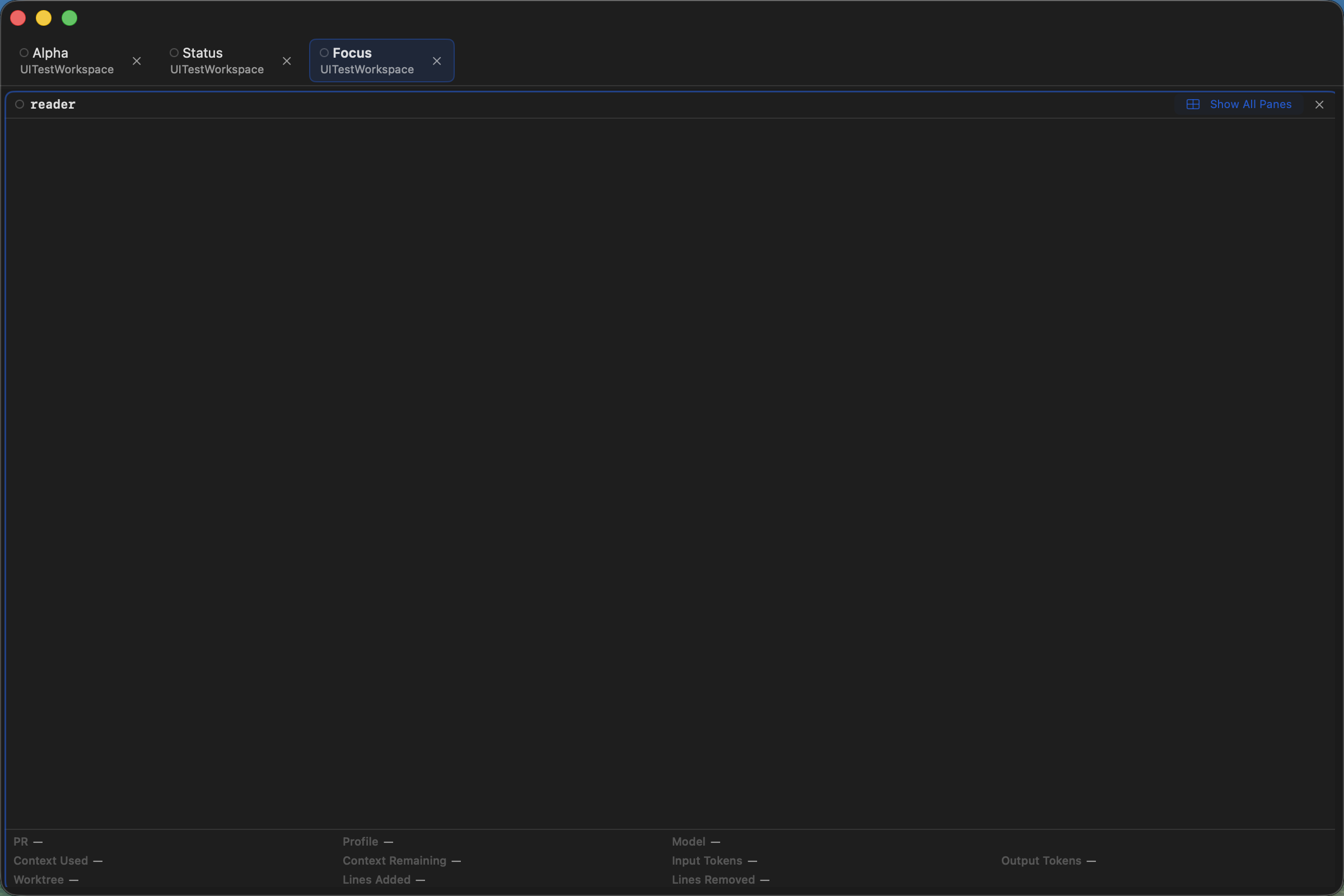
Focused Pane mode expands the selected terminal while keeping its controls visible.
If it does not work
- If Focus This Pane is unavailable, create a second pane in the tab.
- If the grid does not return, use Show All Panes in the focused pane header.
- If the sidebar still takes space, enable Hide Notification Sidebar in Settings → Panes → Focus Mode.