
Reorder Tabs and Panes
Arrange tabs and panes to match the way you work.
What it is
You can drag tabs and panes into a different order. The order is kept when the app is relaunched.
Why you might use it
Reordering keeps the projects and tasks you use most often in a predictable position, making a busy workspace easier to scan.
Before you start
Open at least two tabs or two panes in the same tab.
How to use it
Reorder tabs
- Click and hold the tab label area.
- Drag the tab left or right.
- Release it when the highlighted border marks the desired position.
Reorder panes
- Click and hold the pane header label.
- Drag it to another pane’s position in the same tab.
- Release it when the highlighted border marks the desired position.
The close button and terminal body are not drag handles, so closing, selecting text, and copy and paste continue to work normally.
What you should see
The tab or pane moves to its new position. Pane reordering changes the grid order but does not move a pane to a different tab.
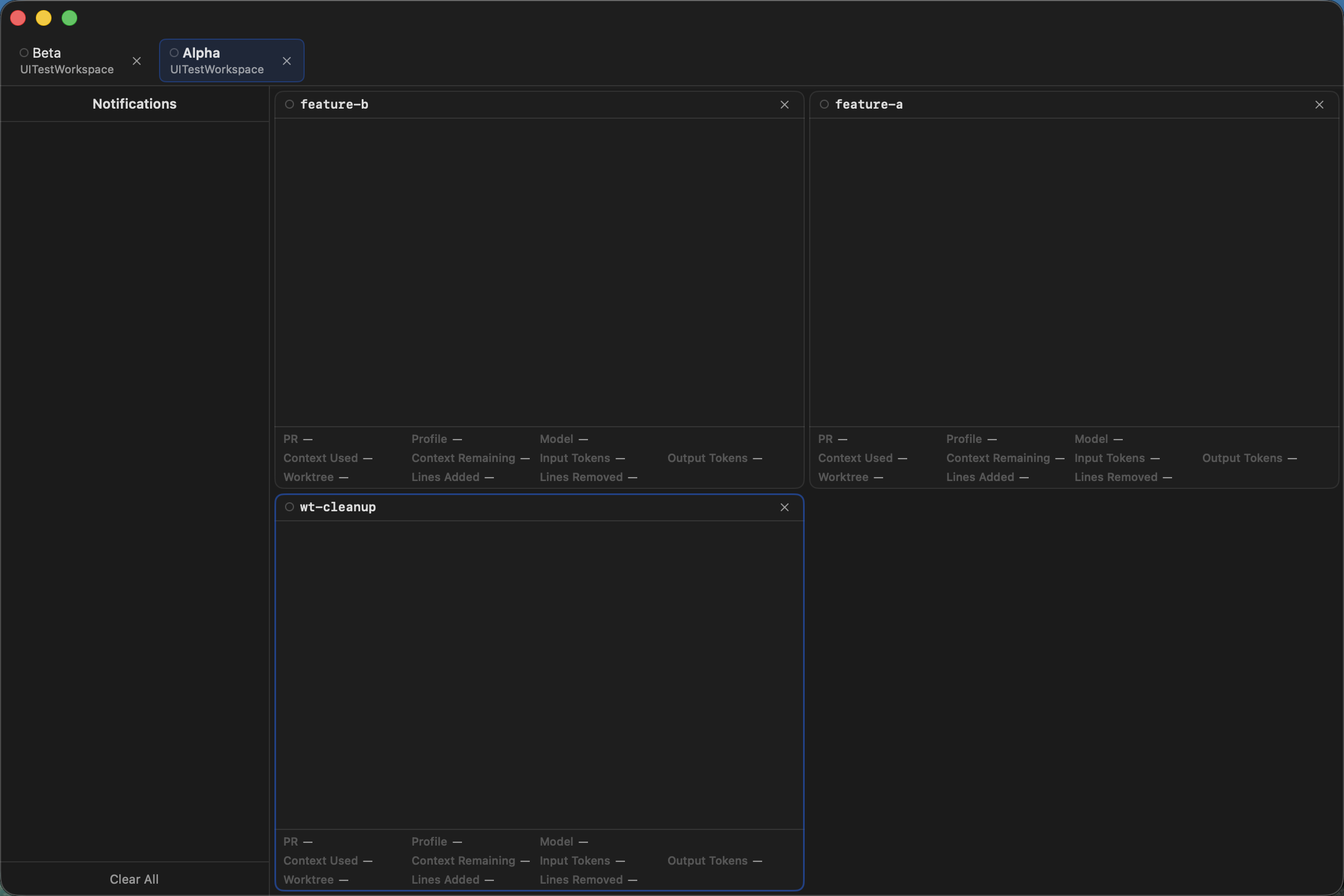
The active tab and pane borders make the resulting order visible.
If it does not work
- Drag from the tab label or pane header label, not from the close button.
- Keep pane reordering within the current tab.
- If the order changes after relaunch, verify that the app closed normally so the latest session state could be saved.