Notifications
Notice when an agent pane needs attention and choose how alerts appear.
What it is
Agent Session Manager can show attention in the pane and tab indicators, the in-app notifications sidebar, and optional macOS banners. Notifications can come from terminal alerts, supported agent-tool events, or tracked pull-request events.
Why you might use it
Notifications let you keep working in one pane while another pane waits for input or finishes a turn.
Before you start
In-app indicators and the notifications sidebar do not require macOS permission. macOS banners require permission in System Settings → Notifications for Agent Session Manager.
How to use it
Read and clear notifications
- A waiting dot on a pane or tab means that pane needs attention. A completed Claude turn can instead use the stopped indicator.
- Open a notification row to switch to its tab and pane.
- Focusing a pane clears its notification.
- Use Clear All in the sidebar to dismiss all current rows.
The sidebar can group priority notifications above other notifications. Priority is selected per pane when Priority Notifications is enabled.
To mark a pane as important, enable Priority Notifications in Settings, then turn on Priority Pane when creating a pane or from the pane’s context menu. Priority notifications appear above other notifications and use the priority color.
Pending in-app notifications are saved with the session and restored after relaunch when their pane is restored. macOS banners are not replayed after relaunch.
Configure notifications
- Open Settings → Notifications.
- Enable Banner Notifications if you want macOS alerts.
- Configure tool-specific completion alerts such as Notify when Claude stops, Stop hook for attention, or Notify when OpenCode stops.
- Choose the Sidebar Position and whether to enable Always Show Notifications Bar.
- Enable Priority Notifications if you want to mark important panes.
To keep macOS banners visible until dismissed, choose Open Notification Settings and set Agent Session Manager’s Alert Style to Persistent.
What you should see
The sidebar shows the pane and tab associated with each pending notification. Clicking a macOS banner brings Agent Session Manager forward and focuses the related pane.
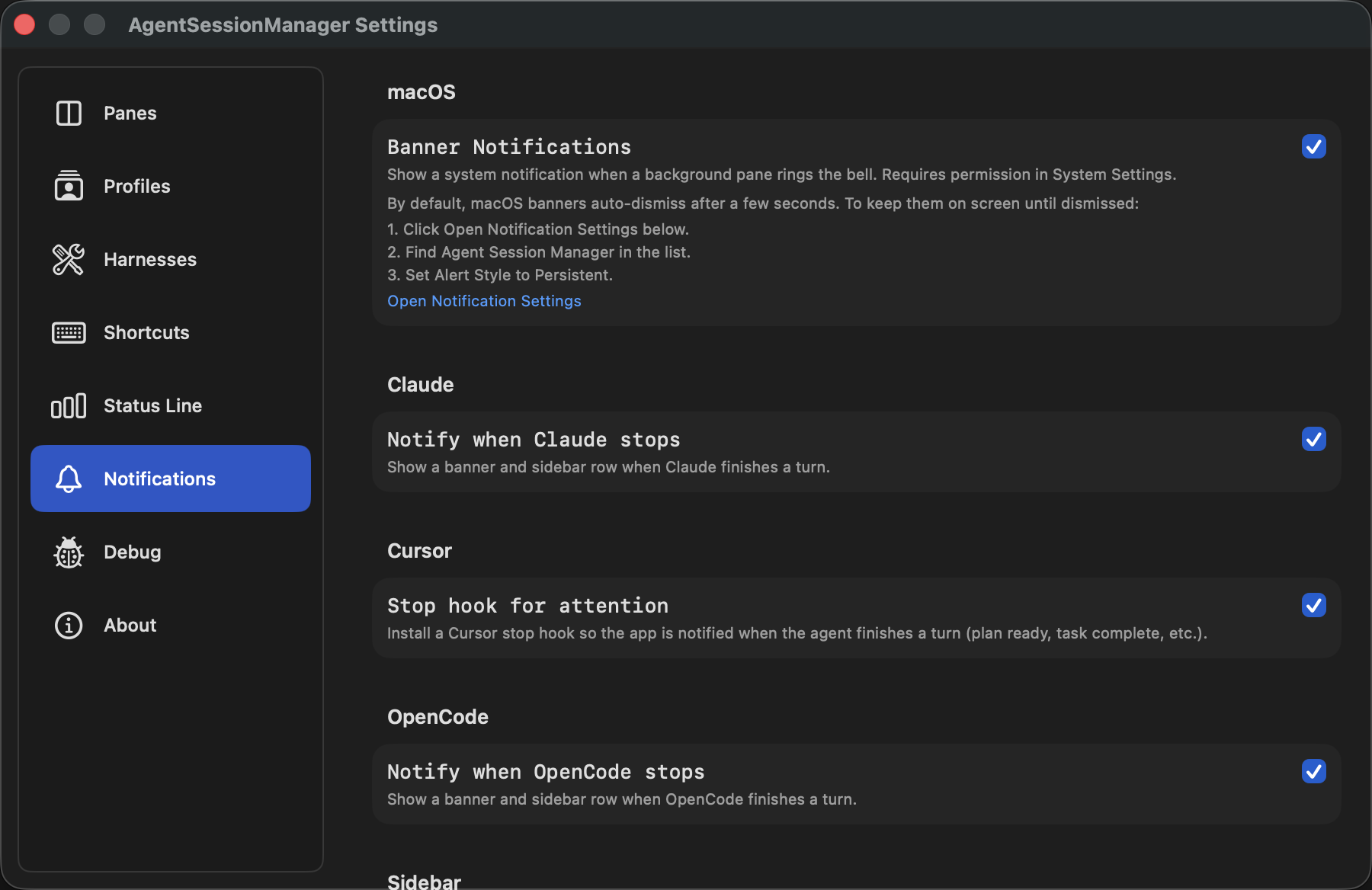
Notifications settings control banners, tool completion alerts, and sidebar behavior.
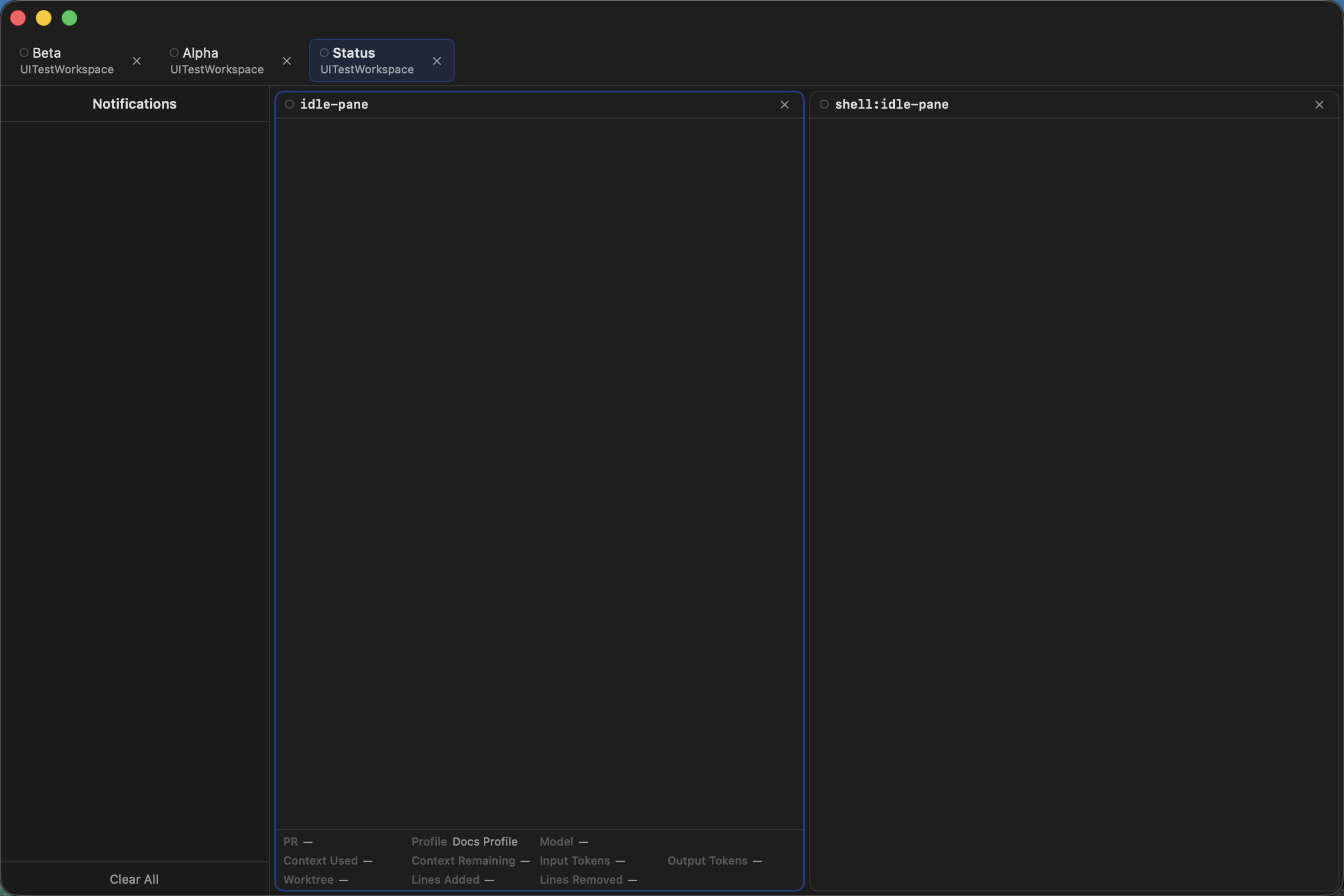
The sidebar occupies a fixed rail beside the active tab’s panes.
If it does not work
- If in-app notifications appear but macOS banners do not, allow notifications for the correct Agent Session Manager app in System Settings → Notifications.
- If the sidebar is hidden, enable Always Show Notifications Bar or wait for a pending notification. If a pane is focused, also check Settings → Panes → Focus Mode → Hide Notification Sidebar.
- If a tool completion alert is missing, check its tool-specific setting in Settings → Notifications and reopen the pane after changing hook-related settings.