
Quickstart
Open a project, create a tab, and start your first agent pane.
What you will learn
This lesson takes you from the main window to a running agent session in a project directory. You will create one tab, choose one task context, and recognize the pane that Agent Session Manager starts for you.
Before you start
Complete Install and First Launch and make sure at least one agent tool is active in Settings → Harnesses. Use a Git repository for the project directory.
Start the lesson
- Open Agent Session Manager and press ⌘T, or choose File → New Tab.
- In New Tab, enter a project name in Name.
- Choose the project directory with Choose…. The directory should contain the Git repository where you want to work.
- Optionally enter a starting branch in Base Branch.
- Choose Create. The new tab becomes active.
- Press ⌘P, or choose File → New Pane in Current Tab.
- In New Pane, choose a Profile. If you use Custom, select an active tool in Harness.
- Enter a session name, branch, or worktree in Session, branch, or worktree. For a new task, use a simple name such as
feature-a. - Choose Create Pane.
At this point, keep the first session simple. The configuration guides explain profiles, CLI options, and pane settings after the basic workflow is working.
Check your result
Agent Session Manager prepares the Git worktree and opens a pane for the selected tool. The pane contains the tool’s terminal session, and the tab remains available for creating additional task worktrees.
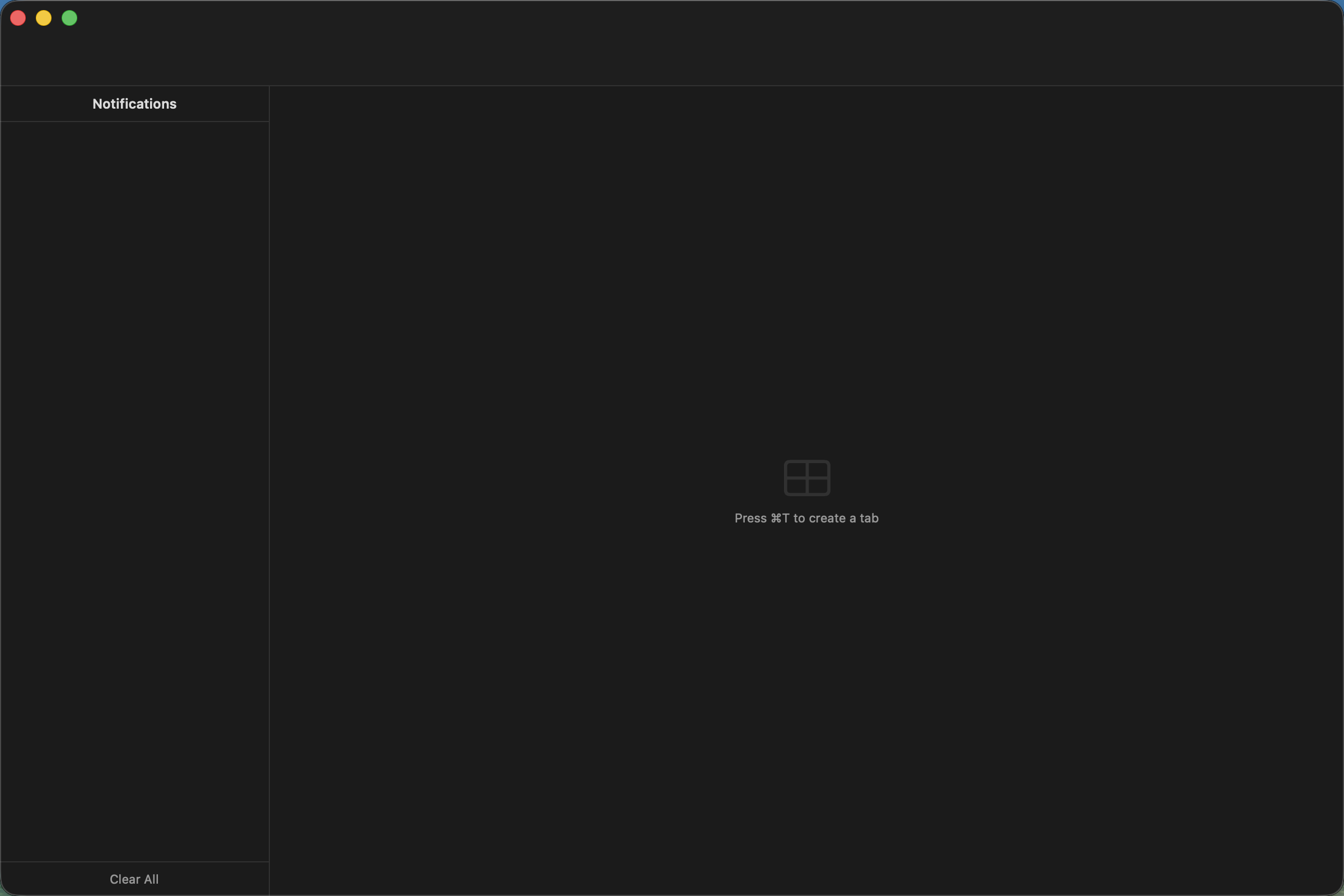
The empty state provides the shortcut for creating the first tab.
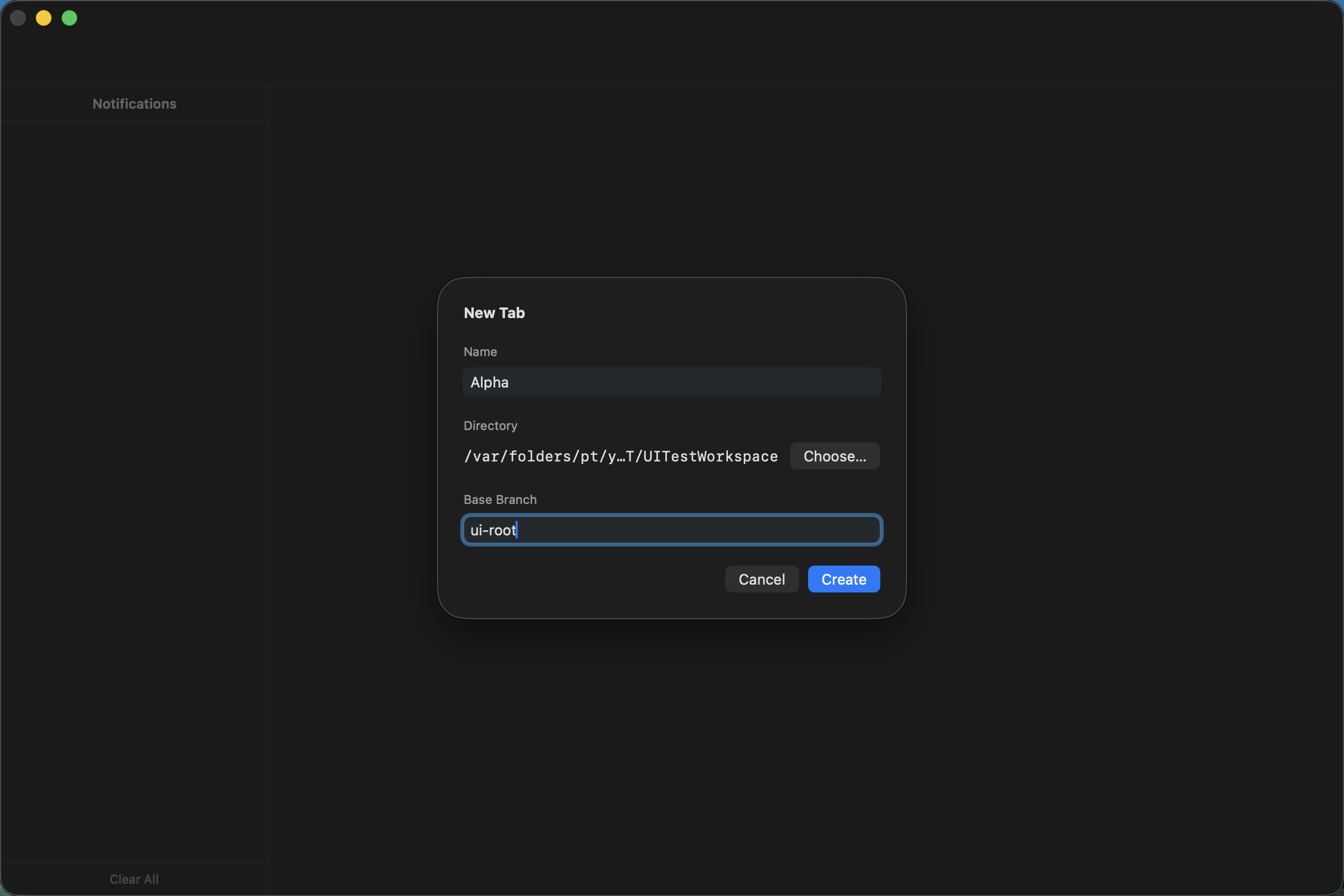
New Tab is ready to create after the project directory and optional base branch are set.
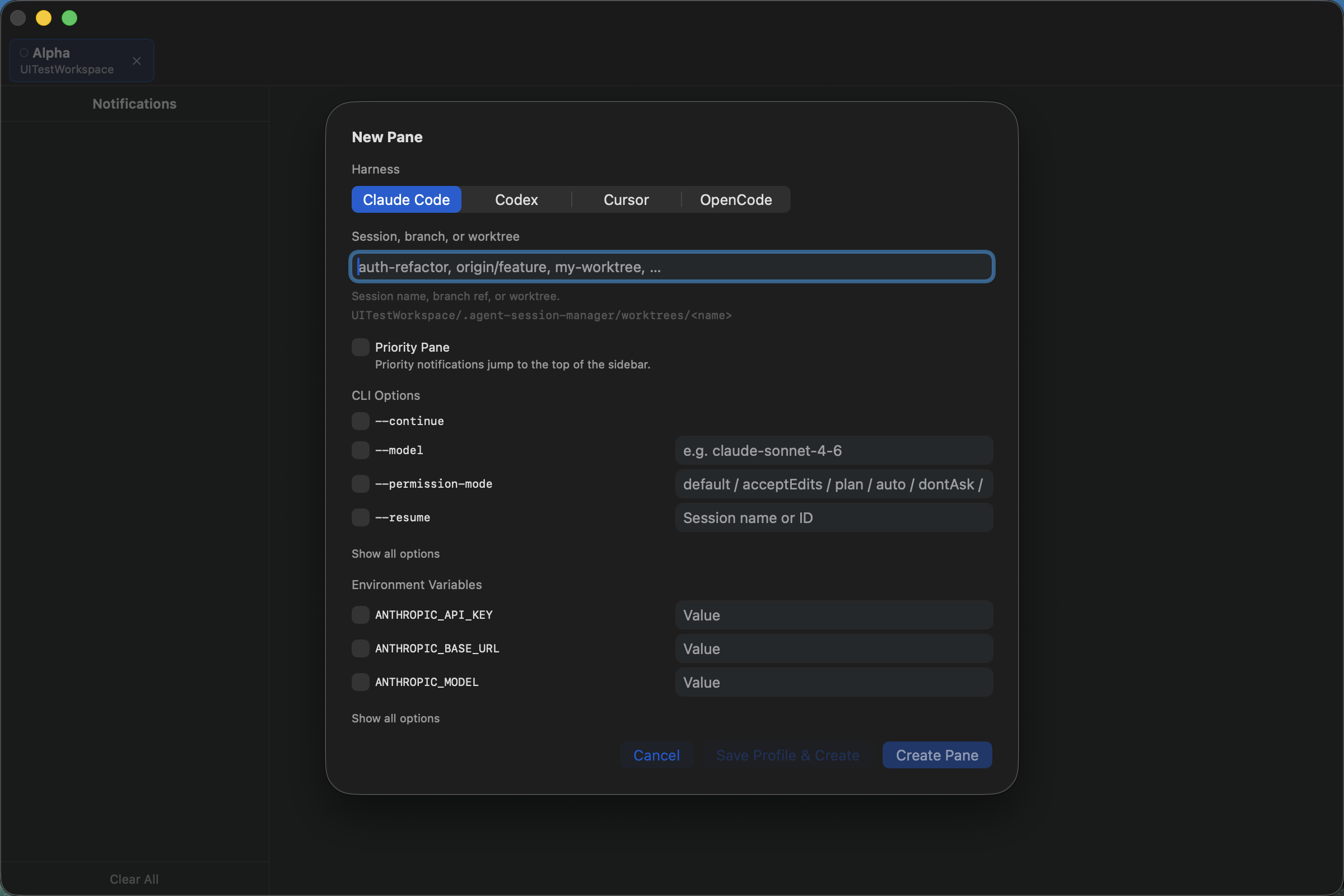
New Pane keeps the profile and session name in the primary path, with CLI options and less-frequent settings available on demand.
If it does not work
- If Create is disabled in New Tab, provide both a name and a directory.
- If no tool appears in Harness, enable one in Settings → Harnesses.
- If the pane cannot resolve the entered name or branch, check the spelling and use an existing branch, remote branch, or worktree name.